Tartalomjegyzék
Fleet Management
 The application's Fleet management module has been designed to maintain our clients' fleet data, and to analyze the data sent and processed by the tracking unit. The following menu items allow you to easily query and analyze your fleet's information.
Devices
 The device menu allows users to look at their devices' information in detail, such as device ID, name, unique code, the related vehicle's number plate and the related phone number. The device information is displayed in a filterable and sortable list. If the device is paired with a vehicle, the vehicle icon appears at the left side in the the list, next to the pencil icon. By clicking on the vehicle icon, the vehicle's info window opens, from where users may directly navigate to the vehicle's datasheet with the Show details/Edit button.


The name, numberplate, pnone number, and the device's group membership can be modified by clicking on the Edit button (pencil icon) at the left end of the row.

The two buttons responsible for the Search and the Column configuration are located at the bottom left corner. The devices may be searched by name, unique code or group membership, the columns' configuration can be compiled from a pop-up list.


Fleet Events

This option gives the opportunity to create or import events, also to modify and search between the already existing ones. The created events are displayed horizontally in the table, their parameters are arranged in columns. By clicking on the columns header, users can arrange the events by the given parameter.
The events can be searched based on vehicle type, event type and date with the Search button.
The configuration of the columns in the table can be set using the Columns button.

New Event
A New event can be created by clicking on the New event button, the frequently used event types can be selected from a drop down list, such as refueling (in this case data can be recorded more in detail), odometer correction, service, assurance and fine.
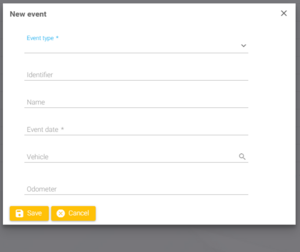

In case the nature of the event does not meet any of the above mentioned criteria, it is still possible to register it by using the “other” event type. After having chosen the event type, the next step is the event’s description in the “Name” field, then the registration of the “event date”. Optionally the odometer standing, and in case it is relevant, the event location can also be saved.
Event import
By using the Import button, users can upload events by default in CSV, but but according to individual or corporate needs, events could be uploaded in other formats too.

Edit event
Events can be edited with the pencil on the left side of the list, data, costs, and notifications can be edited and registered in the opening window.

Data modification
Under the Event data tab, users can modify the event's date and name, if the event's location has been registered at the time of the event creation, it can be displayed on the map with the Show on map button.

Expenses


The next tab to the right is the Expenses, which will be explained later, under the Expenses menu in Fleet management. New expenses can be registered after filling out the mandatory fields, as well as existing records can be modified and searched based on event type using this option. The column's configuration is also available here as elsewhere.
Notifications


Under the Notifications tab, users can create Email and/or text message (SMS) notifications regarding future events, (i.e. service event). Notifications can be triggered either by the vehicle's mileage, or based on the due date. If the user chooses the due date, the notification date can be set one day, one week or one month beforehand.
Vehicles

Within Fleet Management, this option provides the most utilization opportunity, primarily for operations directly related to vehicles assigned to the user, besides, here are several features that can also be accessed as individual points in Fleet Management, and their operation is indirectly related to the handling of vehicles. These are the Events, Costs, and Manage Groups (mentioned as Groups in Fleet Management).
The vehicles data is displayed in rows in the table. The columns in order from left to right start with the pencil to modify the vehicles data and the delete button, then the company name, the vehicle type, name, license plate, mileage, contry code and finally the description of the vehicles properties.

 To create a new vehicle use the New vehicle button loctaed in the bottom left corner under the table. After saving the basic information (company, type, production year, etc.) a new window will automatically open, in it the users can record technical data of the vehicle in detail.
The next option is the Group management, the window opens with the Manage groups button.


 By clicking on the pencil icon users can modify the group's properties, i.e. name and description, and the vehicles', devices' and persons' group membership can also be handled here. New group can be created with the New group button located in the bottom left corner, next to it is the Search button, which filters the stock based on group name.
The last three options are the Search, the XLS export and the Columns. The search filters the vehicles based on their properties, such as registration number, fuel type, name, ID, etc., the export button downloads the filtered result in XLS format, the columns button allows the users to switch any column on and off in the table.
Vehicles' data modification
The vehicles' data modifying window opens by clicking on the pencil icon at the left.

The first of the five available tab is the Data tab, where the vehicle's technical data (color, fuel type, displacement volume, performance, emission standard, consumption, etc.) and the identification information (registration number, unique identifier, chassis number, engine number and nationality mark) can be edited and modified. Photos and notes can be uploaded too, and if necessary, extra data fields can be added to record further informations.

The vehicle-device, vehicle-vehicle and vehicle-person pairings are located under the Pairings tab.

Having selected the pairing type, users can either create a pairing for a definite period of time, or, an open pairing with no end date, with the “New pairing” button. An open vehicle-device pairing closes automatically when a different device is paired with the same vehicle, and it also can be manually closed. The vehicle-vehicle pairing can be useful in case of a tow-trailer combination, or in case of transporting vehicles on a trailer. The vehicle-person pairings will be explained in detail in the Driving behaviour chapter.
The Events/Notifications has already been described under Fleet Events, and it is also avaialble in this menu point.

The Expenses/Documents will be explained below as Expenses, an autonomous menu point here, in the Fleet management. The function is accessible here in the vehicles' data modifying window, and from the Fleet Events modifying window too. New expense can be registered with the New expense button, after filling the mandatory fields, such as: the type, name, amount and currency.

The vehicles' group membership can be handled under the Vehicle groups tab, the vehicle can be added to, or removed from a selected group.

Fuel price

This module of the Fleet management allows users to register fuel prices in the system. Registered fuel prices are the prerequisite of displaying the Consumed fuel cost in Evaluation. Within a company, only one valid fuel price can be registered per fuel type, the registration of a new price closes the previous valid price. The columns in the table are the followings from left to right: edit/modify (pencil icon), start date, end date, fuel type, price and currency. The Start date and End date columns' content can be sorted in ascending or descending order by clicking on their header.


New price can be registered with the New fuel price button. After selecting the company, date, currency and fuel type, filling the price and saving the new entry, the new fuel price will appear in the list. The table's content can be filtered based on the fuel type, start and end date. The current, valid prices are at the top of the list by default, the outdated prices take place below in descending order.
In case a fuel price is registered retrospectively (for a certain period of time in the past), the Recalculate fuel cost button will correct the fuel costs of the concerned vehicles.

The Search and Columns buttons are also in the bottom left corner, as well as for other tables.
Persons
This module of the Fleet management allows users to create new persons or to modify the details of already existing ones, also to manage persons' group membership .

The table's content is organized in the already known fiterable and sortable list, the parameters are the followings from left to right: first name, last name, place and time of birth, nationality and mother tongue. Each columns content can alphabetically be sorted by clicking on the header.
The user's data can be edited with the pencil icon on the left side of the table. Any data can be modified in the opening window, group membership can be managed, photo or document can also be uploaded, as well as notes can be added too.


By clicking on the New person button a new person can be created in the system, following the filling of the mandatory fields (company, first and last name). Further detailed personal data can also be recorded, and the selected person can be paired with a system user. The person-system user pairing is the prerequisite of the driver identification function, which will be explained in detail HERE.
The next function is the Manage groups, it has its own menu point in the Fleet management, but is also available here too. The function will be explained in detail HERE.

The last two options are the Search and the Columns. Persons can be searched based on first and last name, as well as group membership. Deleted persons can be displayed too, the columns allocations is also configurable.
Notifications
Here, users only can view, delete and search Notifications created in Fleet events.

Notifications can be searched based on type (Email or text message), a click on the magnifier at the left end of the row will show the details of the notification, the calendar next to the magnifier displays the event's details. The creation and management of notifications has been explained earlier in Notifications
Partner companies
This menu allows users to register partner companies, their most important informations (company name, contact informations, business profile) are easy to spot in the list.

 A partner company's details can be registered by clicking on the New partner company button. After saving the basic informations, further details can be recorded in the modifying window. Several contact details can be saved for one company, the primary one, which will appear in the list, can be selected from a drop-down list. When creating an expense item in the system, it can be associated with a partner company, therefore the expenses can be analyzed per partner company too.
Groups

This option allows users to create groups, or to display the groups they have previously created, and the already existing groups can be searched by name.

 The pencil icon at the left side of the list edits the group's details, the group's name and description can be modified in the opening window. Having created the group, the membership of devices, vehicles and persons can also be handled by editing the group's details. The rulechains' group membership can only be handled in the Rules function.


Including any asset (device, vehicle, person or rule) in a common group along a certain point of view highlights the significance of groups. In many functions of the application the assets can be searched based on group membership, in this case the the group itself represents the point of view, according to which the user granted the membership. The point of view can be a vehicle type, operational area or the scope of activities, etc.
Expenses
The Fleet management's Expenses function is, where business costs and expenses are recorded. New expense item can be created after filling the mandatory fields, such as expense type, name or short description, net amount, VAT, currency, and if available the company.

As the same function is available in Vehicles, under the Expenses/Documents tab as well as in Fleet events under the Expenses tab, those expense items created in the above mentioned functions, are appearing in this list.

The function allows users to upload documents as well, i.e. invoices, PDF, etc. New expense item can be created with the New expense button, the expense can be linked to a Partner company, this way the expenses can be analized per partner company too.
Tachograph

In the Tachograph function, any user having the necessary permissions can download data from a selected vehicle's tachograph. Our system cannot evaluate the downloaded data, therefore the handling of the data is limited to downloading and storing it. This functions is optional, only available for those having the necessary permissions, the availability can be activated on demand. This menu only allows to access the latest download with the arrow at the right, all the downloads are available in the Documentum store's Tachograph menu.
Download
Two types of tachograph data (vehicle and driver/co-driver data) is available either for occasional or scheduled download.

The successful download depends on several conditions:
- Our product, the HolaTacho application is installed and running on the PC which has network connection, and the company card is connected to the computer
- The ignition is on in the vehicle equipped with the tachograph
- To download the drivers' data, the driver card has to be inserted in the tachograph
Lists, queries


Using Lists and queries, users can create expense reports based on expenses registered in the system. The expense reports can be queried per person or vehicle, per expense type, or per company/fleet.
Query profiles
Having selected the required profile in the Query profiles list, the Run profile button (triangle icon) on the left side loads the profile's parameters, the Set interval button (calendar icon) next to it offers the selection of frequently used intervals.

Custom date settings can be set by clicking in the start and end date fields. If required, the profile parameters (vehicle selection, expense type, ect.) can be modified before running the query.

The query's result
Having clicked the Submit button, the result will be displayed. Th e query's parameters (vehicles, persons, expense type, etc.) are on the left side of the result table, the expense items are on the right, divided into net, VAT and gross amount. The total amount is indicated in the bottom row of the table.

The query results may be exported / downloaded in PDF format.